MonoGame Content without Visual Studio

MonoGame is free software used by game developers to create games for many different platforms. It is almost a Write Once, Play Anywhere!

Unfortunately, the content processing pipeline is not yet available for all platforms or even the later versions of Visual Studio. Here I will show you a way to build the content for any version of Windows, without Visual Studio.

Platforms

Currently supported platforms for MonoGame:

  • iOS (including Retina displays)
  • Android
  • Windows (OpenGL & DirectX)
  • Mac OS X
  • Linux
  • Windows Store Apps (for Windows 8 and Windows RT)
  • Windows Phone 8
  • PlayStation Mobile (currently 2D only)
  • OUYA, an Android-based gaming console

Currently Supported platforms for XNA:

  • Windows Phone 7
  • Xbox 360
  • Microsoft Windows

Support for Xbox One is currently under way with both Microsoft and the MonoGame teams. Microsoft is adding .NET support to the Xbox One and the MonoGame team is adding Xbox One support to MonoGame.

Content Processors

When creating games using MonoGame, there are 2 main parts to any game: the Content and the Code. The content is usually the textures, sounds and fonts in the game. The code is what you write, the logic.

At the current time MonoGame does not have its own content processors, so we will make use of the original XNA build tools. The MonoGame team is working on their tools, but it is not yet complete.

In order to process the content, we need two things: the processor tools and some sort of UI.

Installing the Content Pipeline

We will start off by setting up our content tools before we actually do anything. First we need the assemblies that come with XNA Game Studio. This is the toolset used for building the content that will appear in our game. The actual studio does not install on without Visual Studio 2010, so we have to cheat a bit.

First of all, we need to download XNA Game Studio 4.0 Refresh from Microsoft’s Download Center. Once this is complete, we will load the framework installers out of the studio setup file:

  1. Using 7-zip (or any other compression tool), open the newly downloaded XNAGS40_setup.exe.
  2. Inside the installer, there should be a redists.msi file, open it using “Open Inside” as we don’t want it to start installing.
  3. Extract the files named SharedFilesInstaller_File, XNAFXRedist40Setup_File and XNAPlatformToolsInstaller_File into a directory.
  4. Rename the three extracted files by adding a .msi extension in Windows Explorer, this “turns” them into installers.
  5. Install each of them one at a time.

Once this is done, we would have installed all the build tools required to package the content.

Installing the Interface

Next, we need to install the XNA Content Compiler. This allows the building of the content packages when not using Visual Studio 2010.

You can do this by downloading the XNA 4.0 Content Compiler source code from my fork. I have added some extra features that allow for more advanced content processing, such as, Compression and MipMap generation.

Once you have this, you should be able to open the solution in Visual Studio and build the application. Currently the compiler can only be used on Windows as the tooling is only available on Windows.

Xamarin Has Options

Have you ever wanted to try out creating a mobile app for either iOS or Android using Xamarin? You went to their website, clicked pricing and then reeled at the cost? You are new. You are unsure. You want a taste. You don’t want to spend all your money and then maybe be a little unhappy.

Well, don’t worry, there is an pricing option for you! There are a couple of good ones that can fit your needs as someone stepping into a whole new world of magic.

You can check out the pricing and comparison charts at the Xamarin Store.

The Free ($0/m or R0/m)

Xamarin provides a free, zero cost, no cash option. Starter Edition! You may think that this is too limited. Only small apps. No native library interaction.

You are right. But. How small is small? Also, what are you measuring? The limit is only the size of the compiled source code, not the whole app. Chances are you aren’t going to hit any limit in your first week. The small app limit is almost a myth!

No native library interaction? What if I want to use… Is it a big no? No! With Starter you can use third party libraries that are available in the Component Store or on NuGet. And again, the chances are you aren’t going to be using some obscure framework on the first go. Both iOS and Android are mature platforms with many features, so probably what you need is already there.

The Indie ($25/m or R260/m)

But… Let’s say you need to write some custom native bindings or you have this massive app… There is a version for you still. But, if this is the case, how about giving the Indie Edition version a shot?

You recall looking at the price for this one… $299, or if you are with me in South Africa, R3200 at the current exchange rate. Pricey! Very much so…

But, Xamarin marketing to the rescue! They sat down and had a chat… What can Xamarin do so that the company makes a profit, but make sure the developer also can get a profit? So they came up with a subscription plan. A pay-as-you-go, or pay-for-what-you-use.

This new model, just out this week, provides you with a monthly subscription that can be started and stopped at your hearts content.

Lets say for example you are a student… You are studying hard like all students and don’t have much free time. But, you want to write an app in the holidays. It is going to be a big app. Starter ain’t gonna cut it. I’ll just note here that Starter probably would be fine for a case like this, but just to continue… You want Indie for one, maybe two months at most. Are you going to spend thousands of Rands? No. So you sign up for the Subscription Indie package.

What this does for you is that you will pay a small amount, and then get that month of development time. So in the example of the student, you sign up in June, pay your fee and do some dev. Then in July, you pay the next bit, and do some more dev. Then you release your app and go back to the books. August comes, you get a bill from Xamarin, and you just ignore it! They will suspend your account, so no more dev, but your app is out there and will is good.

Then after your exams, near the year end, you decide to do an update. All you need to do is pay that month’s bill and all is working again. Writing code until the sun comes up again.

So how’s much does this cost? Is it going to break the bank? Nope, it works out well. Each month costs $25, or for those in South Africa, R260. This cost is for either Xamarin.iOS or Xamarin.Android platforms. And not only that, you get access to some Xamarin exclusives, such as the new Xamarin.Forms. You can also subscribe to both platforms and get a 10% discount!

The Student ($99/y or R1000/y)

And, after mentioning students, remember they do have a special Student Discount for you. All you have to do is send student@xamarin.com an email from your student email address and they will send you a discount code. For as little as $99, or R1000, you get access to the Business Edition of either Xamarin.iOS, Xamarin.Mac or Xamarin.Android. And remember the business edition has even more features. My personal favorite is Visual Studio support! This allows you to build not only Android apps in Visual Studio, but also iOS apps! With a drag-and-drop designer!

If you are part of an Open Source project you can also get a complimentary license! All you need to do is fill in the Open Source Contributor Form and someone will get back to you!

Be sure to check out the new pricing options as well as the student and open source discounts!

The Xamarin User Group (XUG)

If you haven’t had a chance to meet your neighborhood Xamarin developers in person yet, Xamarin User Groups provide a perfect venue for connecting with like-minded developers and local experts.

If you are in Cape Town, South Africa, be sure to pop in to our monthly Cape Town Xamarin User Group, I’ll be there!

And also download the iCalendar.

The University ($1995/y or R2100/y)

Have you ever wanted to be better, do better, know more, finish first? Well you can get there by learning from the Xamarin cross-platform expert lecturers at the Xamarin University.

After taking a few classes, you can become a Xamarin Certified Developer, which shows that you have demonstrated expertise in cross-platform mobile development in iOS, Android, and Windows using the Xamarin platform.

Why would you want to get this certification? Well…

  • It is a premiere badge of achievement in Enterprise Mobile Development and an outward illustration that you’ve met a high bar of demonstrated expertise as a Xamarin Developer.
  • You are eligible to be included in the Official Xamarin Certified Developer LinkedIn Group: a curated professional network that only includes currently certified developers that get special access to mobile development jobs and other benefits.
  • You can proudly display the Xamarin Certified Developer Badges on your website or resume.

Xamarin University allows you to study at your own pace and at your own times. All you do is take a yearly subscription for $1995, or for us South Africans, R21000. This is a high price as it stands, but it does give you a certification, live web lectures and one-on-one feedback and discussions. This is often things that other recorded-video courses can’t provide.

Be sure to check out Xamarin University or contact them for more information.

ADB DEVICES >> No Devices Found

When building apps for Android using obscure devices such as the one I was using, sometimes the ADB (Android Debug Bridge) cannot find the device. I spent a long time trying to find out why my device was not appearing in adb, as Windows picked it up in the Device Manager and in Windows Explorer.

Usually, just installing the “Google USB Driver” by using the Android SDK Manager, results in all you problems going away. But, with the more obscure devices, this sometimes does not fix the issue.

The first step is to ensure that the device is installed. This can be checked by using the Windows Device Manager. If the device is not installed, it will be under “Other Devices”, then you just need to install it manually. If you downloaded the drivers by using the Android SDK Manager, then you can find them in a subfolder of the SDK ([sdk]\extras\google\usb_driver\). There should be a file called android_winusb.inf. There is also another way to obtain these drivers without using the Android SDK Manager, and that is directly off their website (latest_usb_driver_windows.zip). You can then extract the files to a convenient location so that you can install the drivers using the Device Manager.

  1. To install the drivers, you can right click the “Unknown Device” under “Other Devices” (It may be a partial/vague bit of a device name – for example, mine is just “Full”), and click “Update Device Software…”. This will start the wizard.
  2. On the first page, you can click “Browse my computer for driver software” (we want to select our downloaded files manually).
  3. We then click the “Let me pick from a list of device drivers on my computer” button as we want to do the install manually as Windows will not detect the driver as they are generic.
  4. The first item in the list of hardware types will be “Show All Devices”, select that and press “Next”.
  5. On the next page, there will be a “Have Disk…” button. Press that and then we can browse to where we have either extracted or installed the drivers to (the file we must select is android_winusb.inf). Press “OK” and then you should be back to the page that contains the “Have Disk…” button.
  6. Above the button will be a list with 3 items, select the “Android ADB Interface” and press “Next”.
  7. Windows will show a warning dialog that says that the device driver is not recommended. We can safely press “Yes” as this is just because this is a generic driver.
  8. Windows will install the driver and when it is finished, we can close the window.

Our device (“Android ADB Interface”) should now be under the “Android Device” item. The device is just installed, and this may be all we need. You can run the ADB DEVICES command to see if the device is detected.

If the device is not detected, then we may have to manually specify the device as a valid Android device for ADB. In order to do this we need to find out our device Hardware ID.

  1. We can obtain the Hardware ID via the Device Manager. We can just right-click out newly installed “Android ADB Interface” item and press “Properties”.
  2. On the “Details” tab, select “Hardware IDs” from the dropdown. There may be one or more items here, but you can use the one that starts with “USB\VID_####” (the #### is the 4 character device Hardware ID). I have an item labeled “USB\VID_2207&PID_0010&REV_0222&MI_01”, thus my Hardware ID is “2207”.
  3. Now, the short way to add the device to ADB is to just add the device Hardware ID to the adb_usb.ini file (%USERPROFILE%.android\adb_usb.ini).
  4. If this file does not exist, you can safely create it.
  5. Open the file in Notepad and add a new line to the end of the file in the form “0x####” (again the #### is the Hardware ID). In the case of my device, I added a line “0x2207” to the bottom of the file.

You should be able to now restart ADB and the device should be listed. You can do a restart by running 2 commands ADB KILL-SERVER and then ADB START-SERVER.

As the Android SDK Manager may overwrite the files here, you changes may be lost later. The correct way to ensure the install the device for ADB is to create a new add-on. This is simply creating a new file in a new folder under the “add-ons” folder in the SDK ([sdk]\add-ons\).

  1. The first thing to do is create a new folder for you add-on. You can pick any folder name as long as it won’t conflict with any other add-ons. I picked “small-tablet” as I don’t think that is a add-on name that is used elsewhere.
  2. Inside that new folder, create a manifest.ini file.
    • name – the add-on name
    • api – the API level on the device – mine was 4.0, thus 14
    • usb-vendor – the hex Hardware ID – mine was 2207, thus it will be 0x2207
  3. The item should now appear in the Android SDK Manager under “Extras”.

The contents of the manifest.ini file should be something like this, with the most important items:

name=small-tablet
vendor=Who Knows
description=That cheap 7″ tablet
api=14
revision=1
usb-vendor=0x2207

And there we go, we now have a nameless device in our Android SDK Manager.

Binding Flurry Analytics with Xamarin

Over the last few days I have been creating a Xamarin.iOS and Xamarin.Android binding for Flurry Analytics SDKs. Flurry Analytics is a neat little library that allows for tracking of your app usage and various user stats.
And, because I really enjoyed my time doing this, I thought that I will share just a bit of the fun times and the not-so-fun times.

I have split this project up into four parts:

  1. Introduction and Pre-requisites
  2. Xamarin.iOS binding
  3. Xamarin.Android binding
  4. Flurry.Analytics in the wild

Pre-requisites

Before we start any coding, we need to get all our tools and files needed for the actual binding tasks.

I was using both Windows 8, with Visual Studio, and Mac OS X with Xamarin Studio. You can bind the Android library on either platform, but for iOS, it is easier to use the Mac. In this case, I will use the Mac for both iOS and Android.

Some of my very excellent sources for this process were the actual Xamarin documentation:

But, along with this info, there are just a few things that you may need. Firstly, it is good to update your Xamarin Studio to the latest stable release as this makes sure that all potential problems are minimized from the start.

Then, the next cool tool to get hold of is, Objective Sharpie, for binding iOS libraries. This tool is quite nifty for quickly generating the .NET interfaces from the Objective-C header files. It uses the header files not the actual compiled native library. The Xamarin docs on Objective Sharpie has a brief walkthrough on how to use the tool, so I will assume you know how to use it.

After we have all our tools ready to go, we need those SDKs from Flurry.

What I did was to create a free account by Flurry, and then created an Android and iOS Application using their dashboard. You have to have an application before they will let you download their SDKs. This step is pretty straight forward, so I won’t go into it here right now. Once you have created and downloaded the SDKs, you can extract them to a nice location for reference.

Now to get started with the real work…

But, as this is quite a long process, I will be splitting this article into this intro, the iOS binding and the Android binding. So, enjoy!

Binding Flurry Analytics with Xamarin.iOS

This week, I needed to use Flurry Analytics in my Xamarin.iOS and my Xamarin.Android apps, but there was no .NET SDK for these platforms. Flurry did provide a SDK for each platform, but it was the native libraries, which cannot be used directly in .NET. Given this, I decided to bind those native libraries using Xamarin.iOS and Xamarin.Android.

I have split this project up into four parts:

  1. Introduction and Pre-requisites
  2. Xamarin.iOS binding
  3. Xamarin.Android binding
  4. Flurry.Analytics in the wild

The first thing we are going to bind is the iOS SDK for Flurry Analytics. This task needs two things from the downloaded SDK:

  • [iOS-sdk-path]/Flurry-iOS-5.2.0/Flurry/Flurry.h
  • [OS-sdk-path]/Flurry-iOS-5.2.0/Flurry/libFlurry_5.2.0.a

Of course, the version numbers may change for later releases. The header file (.h) is going to be used to generate the .NET interfaces and enums. The library (.a) is going to be used in the project.

Just before we do the cool things, we should just create our C# solution for the Xamarin.iOS binding. Just create a new project/solution and select the “iOS Binding Project” template. For my project name I used Flurry.Analytics.iOS, but you could use anything.

The default project has a few files in it, we will have a look at each one in depth as we go through the binding steps:

  • ApiDefinition.cs (this is for the generated .NET interfaces from Objective Sharpie)
  • AssemblyInfo.cs (the usual assembly information attributes)
  • Extras.cs (this is for any additional changes that are needed for the bound types)
  • StructsAndEnums.cs (this is for any extra types that you wish to include in the final assembly)

Creating the Initial Binding

This step will involve using Objective Sharpie to get us started, but we will almost always have to go in and tweak a few things.

So, first things first, open Objective Sharpie and start the wizard. Select the Flurry.h header file, and I used the namespace Flurry.Analytics. After saving your file somewhere, we can start the tweaks. I don’t save the result into my solution as the amount of tweaks needed is high enough that I like to have a before and after file. Also, this library is very small. But, there is no reason why you couldn’t just save over the ApiDefinition.cs file in you project.

Before we start, here is a snippet from the Flurry.h file:

    // an enum
    typedef enum {
        FlurryLogLevelNone = 0,
        FlurryLogLevelCriticalOnly,
        FlurryLogLevelDebug,
        FlurryLogLevelAll
    } FlurryLogLevel;

    // the main class
    @interface Flurry : NSObject {
    }
    // ...
    + (void)setAppVersion:(NSString *)version;
    + (NSString *)getFlurryAgentVersion;
    + (void)startSession:(NSString *)apiKey;
    // ...
    @end

In this snippet of Objective-C goodness, there is an enum named FlurryLogLevel and an @interface named Flurry. This will translate into a C# enum and class respectively. It is also good to note that all the methods on this particular type will be static.

The generated C# for this snippet is:

    // the enum
    public enum FlurryLogLevel : [unmapped: unexposed: Elaborated] {
        None = 0,
        CriticalOnly,
        Debug,
        All
    }

    // the main class
    [BaseType (typeof (NSObject))]
    public partial interface Flurry {
        // ...
        [Static, Export ("appVersion")]
        [Verify ("ObjC method massaged into setter property", "Flurry/Flurry.h", Line = 61)]
        string AppVersion { set; }

        [Static, Export ("getFlurryAgentVersion")]
        [Verify ("ObjC method massaged into getter property", "Flurry/Flurry.h", Line = 80)]
        string GetFlurryAgentVersion { get; }

        [Static, Export ("startSession:")]
        void StartSession (string apiKey);
        // ...
    }

As you can see, the generated file is similar, but not quite the same.

Tweaking the Generated Binding (ApiDefinition.cs)

After we generated our C# files, there are several things to note:

  • This code doesn’t compile at all
  • A good few of our methods are set to properties, especially note the setter-only ones
  • There is a [Verify(...)] attribute which doesn’t even exist
  • Some [Export] attributes have a value that ends in a colon (:), and others do not
  • The type is not a class but an interface
  • The base type is specified as a [BaseType] attribute
  • The enum has the item prefixes removed

This is quite a list here, but not all are bad. Objective Sharpie can’t generate perfect code as Objective-C is not C#, so there will always be human intervention. In these cases, it will generate what it thinks to be best and then let you know.

The [Verify] attribute is one way that Objective Sharpie lets you know that it changed something. In this instance, it is letting us know that it changed the setAppVersion method into a property. This is because usually there is both a getter and a setter method for a Objective-C property. But in this case, it is actually a method.

As you may note, these properties have a slightly different [Export] attribute in that these members don’t end in a colon. This is valid for Objective-C property setters, but as this is a method, we should add a colon back. It is also valid for methods that take parameters.

So, to fix those properties, remove the [Verify] attribute. We should also fix the exported name, and for the setter property, add the colon back in.

    [BaseType (typeof (NSObject), Name = "Flurry")]
    public partial interface FlurryAgent {

        [Static, Export ("setAppVersion:")]
        void SetAppVersion (string version);

        [Static, Export ("getFlurryAgentVersion")]
        string GetFlurryAgentVersion ();

        [Static, Export ("startSession:")]
        void StartSession (string apiKey);

    }

As you can see here, I corrected the SetAppVersion write-only property by transforming it into a void method that exports to setAppVersion:. Note the full name and colon as this method takes a parameter.

Also, I needed to fix the GetFlurryAgentVersion read-only property by transforming it into a string method that exports to “getFlurryAgentVersion”. Note the lack of colon as this method takes no parameters.

And finally, I decided I wanted my final class to be called FlurryAgent to avoid confusion with the namespace as well as indicate that it was the Agent. In order to do this, All I needed to do was to rename the type and add the Name property in the attribute with a value of "Flurry".

The reason for adding this property is, after changing the type name, the binding no longer will be able to find the underlying Objective-C type. Usually the binding will use the default name if none is provided, the C# class name. After changing it, it no longer reflected the Objective-C type name, hence the new property.

Managing the Structures and Enumerations (StructsAndEnums.cs)

The last thing to fix, in the generated code, is the enum.

This is simple to do, just remove the strange attribute-like bit: [unmapped: unexposed: Elaborated].

One of the nice things of Objective Sharpie is that it removes the enum prefixes and just uses the relevant bits. For example the original item was FlurryLogLevelNone, but this is now just None.

The final enum looks like this after it has been moved to StructsAndEnums.cs:

    public enum FlurryLogLevel {
        None = 0,
        CriticalOnly,
        Debug,
        All
    }

So far, all our generated code has been moved into either, ApiDefinitions.cs (the class), or StructsAndEnums.cs (the enum). We are still not complete yet, but we are nearly there.

Additional Binding Code (Extras.cs)

Once we have the basic binding done, we can always extend what the native library provided with extra features. This is done by adding new source files to the project.

For example, if for some reason you need to add any extra bindings to the library, say to access a private member or even just to make the new API cleaner and more .NET-like.

For example you could do something like this:

    public partial class FlurryAgent : NSObject {
        public static void LogTimedEvent (string eventName, Action action) {
            try {
                FlurryAgent.LogEvent (eventName, true);
                action(); // do our task
            } catch {
                FlurryAgent.EndTimedEvent (eventName, null);
                throw;
            }
        }
    }

What is happening here is that I am adding a new method to the final .NET assembly. This method can make use of the methods in the API definition interface. In this particular example, I am adding a method that can take an Actionand make sure that we fire a ‘starting’ and then an ‘ending’ event to the Flurry servers. This is a new bit of functionality that can be baked right into the binding assembly.

Working with the Native Library (.a)

This step is actually quite easy, just add the native library (.a) to the project, and you are almost done.

When you add the native library to the project, Xamarin Studio will create a new .linkwith.cs file that matches the library name. For example with Flurry, I added the libFlurry_5.2.0.a library to my project and it generated a libFlurry_5.2.0.linkwith.cs.

This new file is the last bit that needs to be done. It is for the linker when using this library in an iOS app. It usually will contain only a single line, a single [LinkWith] attribute. This attribute allows you to specify what targets this library can be used with, what extra iOS frameworks are needed, etc:

    [assembly: LinkWith (
        "libFlurry_5.2.0.a", 
        LinkTarget.Simulator | LinkTarget.ArmV6 | LinkTarget.ArmV7 | LinkTarget.ArmV7s, 
        ForceLoad = true)]

This is the default line, split for readability, and usually it is all that is needed. What this does is say that the linker must use the libFlurry_5.2.0.a native library as well as this library can be used on the Simulator and all the devices. The ForceLoad is used by the Xamarin.iOS linker, and specifies a linker flag. According to the documentation, this should always be true for now.

But just before we finish up, we need to add any required frameworks. Without this, there will be strange happenings…but different depending the configuration.

If building for Debug, the app will launch, but nothing will happen at all. The methods can be called and everything, but no actions will take place.

If building for Release, the linker will throw an error:

Error MT5211: Native linking failed, undefined Objective-C class: _OBJC_CLASS_\$_Flurry.
If ‘_OBJC_CLASS_\$_Flurry’ is a protocol from a third-party binding, please check that it has the [Protocol] attribute in its api definition file, otherwise verify that all the necessary frameworks have been referenced and native libraries are properly linked in.

This error is giving us lots of information for @protocol, but as we don’t have any in our project (recall the @interface), we can safely ignore the first part of the second message and focus on the ‘frameworks’ part. According to the Flurry documentation, the Security.framework is required and the SystemConfiguration.framework is optional, but recommended.

So, I added both frameworks, using the Frameworksproperty:

    [assembly: LinkWith (
        "libFlurry_5.2.0.a",
        LinkTarget.Simulator | LinkTarget.ArmV6 | LinkTarget.ArmV7 | LinkTarget.ArmV7s, 
        ForceLoad = true, 
        Frameworks = "SystemConfiguration Security")]

As shown here, the frameworks are space-separated and do not have the .framework extensions.

Finishing Up

So far we have defined our API, added any additional logic or types, added the native library, set up the linker and specified the frameworks. This is all that is needed, so our library should build fine now and we should be able to use it in an Xamarin.iOS app:

    // the methods
    FlurryAgent.StartSession("PQSZJRK4B5BW8Q7YQQXF");

    // the properties that we changed back into methods
    FlurryAgent.GetFlurryAgentVersion ();

    // the extra method that we added
    FlurryAgent.LogTimedEvent ("started", () => {
        // ...
    });

Under the Hood

One thing to know is that the iOS binding project is actually not really compiled directly, but are a series of stages. Each file actually has a different build action.

The first stage to building the binding is to build a reference assembly with the files:

  • ApiDefinition.cs (with build action ObjcBindingApiDefinition)
  • StructsAndEnums.cs (with build action ObjcBindingCoreSource)

Next, this assembly is then reflected to generate the actual binding code. This generated code is then compiled with the rest of the files:

  • Extras.cs (with build action Compile)
  • StructsAndEnums.cs (again with build action ObjcBindingCoreSource)
  • libFlurry_5.2.0.linkwith.cs (with build action Compile)
  • libFlurry_5.2.0.a (with build action ObjcBindingNativeLibrary but is actually just a resource)

An example of the generated code in the second stage, the interface member void StartSession(string) is actually used to generate a big block of code:

    [Export ("startSession:")]
    [CompilerGenerated]
    public static void StartSession (string apiKey)
    {
        if (apiKey == null)
            throw new ArgumentNullException ("apiKey");
        var nsapiKey = NSString.CreateNative (apiKey);

        MonoTouch.ObjCRuntime.Messaging.void_objc_msgSend_IntPtr (class_ptr, selStartSession_Handle, nsapiKey);
        NSString.ReleaseNative (nsapiKey);
    }

This is all the magic that happens under the hood to redirect values from the managed .NET to the underlying native library.

For Windows Phone, By Surface Pro

Surface Pro and Windows Phone

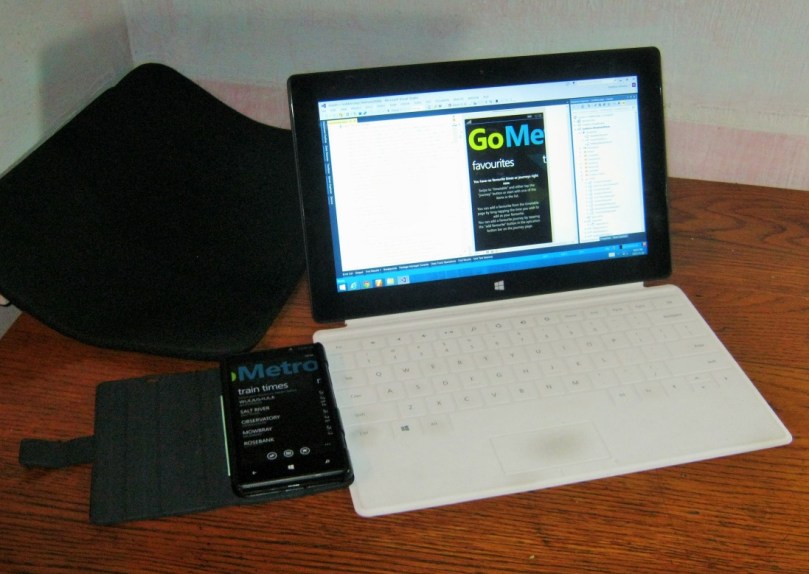
I was just reading through my usual news feeds, one of them being Windows Phone Central when I came across a cool post from Microsoft, “Geek out with Surface and win!“. So I started thinking about what I could do. I am one of the very few people in South Africa that has a Surface. The shipping is what kills, but I had to get one. I am also a developer, so it seemed natural to get a tablet that ran Visual Studio. Only the tablets running Windows 8 Pro was of any real value, so after a bit of thought, I got myself a Surface Pro – and have been loving it ever since.

Just to show how great this tablet really is, I can say that I gave my PC away and never once regretted that decision. I have developed an app for Windows Phone 8 exclusively on the Surface. It is available on the Store: GoMetro | Windows Phone Apps+Games Store. I am proud of this app as it is my first for Windows Phone as well as it being developed on my favourite device – my Surface.

Some time ago, before I started the app, I wrote a post on what I was going to do: “GoMetro for Windows Phone 8

I love my phone and my tablet, and I develop apps for both. I am working on several projects ranging from websites, Windows Phone and desktop. C# is my main language, but I do do extensive JavaScript and CSS development for those wbsites.

As you can see, my Shift and Ctrl keys are a bit worn from my continuous use! I won’t recommend the touch cover for extensive use, certainly not for development, but it can be done – you just hve to get used to typing.

Overall the tablet is very good, it can play the average game as well without a real problem. Excellent for surfing the web and social networking, emails and other light use. I read my digital comics on this device and they are clear, crisp and vivid.

On more serious tasks, it is also oustanding, development is slightly harder due to the small screen, but I developed an app without any external monitors so it can be done. I have done some photo editing and 2D drawings without any problems. I run a virtual machine using Hyper-V for one of my projects, and have not noticed a real problem.

The OS is snappy an the apps that I use are very good: Mail, People, Facebook, Internet Explorer, Skype, Nokia Music, Adera (game), Fresh Paint and Autodesk Sketchbook. There have been some tremendous improvements since Windows 8.1.

The USB port in the charger is used to charge my phone and the stylus is used for my assignments and note taking in both OneNote and Word. I have done some nice drawings and the stylus is pretty accurate. The USB port is used mainly to connect my external HDD, but is used for other things, even for emergency charging of my phone when I don’t have my charger around.

The sound quality is good, sometimes a bit soft, but that doesn’t really affect me as I use it mostly after hours and late into the night. Movies are awesome, colours are good and there is no lag in the images that I can see.

I find the battery life is fairly substantial, setting my brightness to about 75% usually extends it for several hours – I have never actually measured, but it is more than 5 hours. Often, in my bed at night I can read my comics, setting the brightness right dow and it’ll last for hours even from below 50%.

One more thing, SkyDrive. This is integrated into the OS, but that is just cool. The most totally awesome feature is the photo file management: I have got over 8GB on SkyDrive, but it only takes up 170MB on disk. This is the greatest and coolest of all those cloud guys. Especially as the tablet has limited storage of 128GB. I have just clocked at 50% on my HDD, so the space is not being swamped, even with Office, Visual Studio and its SDKs. Although, I do have an external drive for my music, movies and other large games such as Battlefield.

I look forward to trying and maybe buying the Surface Pro 2…

GoMetro for Windows Phone 8

I was just recently given the opportunity to work on a Windows Phone 8 app for the GoMetro system. Currently they have the mobile website and are working on a new-and-improved version, but not yet a Windows Phone 8 native app. As I have a shiny new Nokia Lumia 820, its no good going to the web browser each time I need to take a train.

They have a REST API that I will be using, but I hope to use some caching and personalization on the user’s device. The next version of the GoMetro engine will have more features like these, but until then, it will have to remain local only. Of course, once the next version is out, I should just be able to import them into the online database.

I have been working on some concept designs for this app, which I show below. I am using ProtoShare instead of manually drawing each screen. This is a cool tool for quick screen creation, although it is not free. I will give it a try and see what happens.

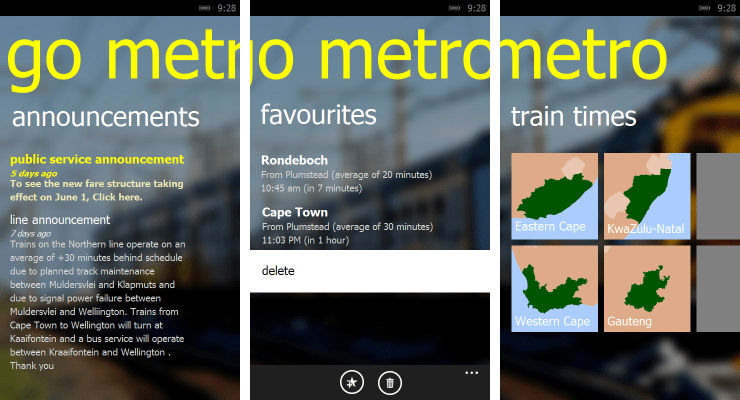
This application so far has 3 main areas of importance:

  1. Announcements
    This is the area where we will be able to display any notifications about the lines, Metrorail and the app.
  2. Favourites / Shortcuts
    This is probably the most important feature for me as I often don’t commute to work on a specific train, but rather the one around 8:30, sometimes before and sometime after. So instead of going through the whole workflow to get the next time, I can quickly see the scheduled arrival. As the current API does not support storing this on the cloud, I will keep it in a small SQLite DB on the actual device, to be synced at a later date.
  3. Train Timetables
    This is the usual workflow for getting the times of the next train. The next image follows on from after the user selects a province that he/she is interested in.

Main Screen 

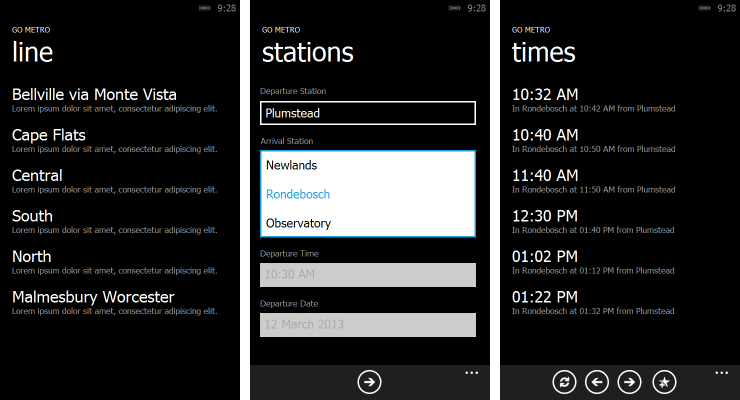
The next main chunk of application is the actual finding of the train timetable. This is going to be the same as the website in structure.

We get to this level after the user selects a province from the main screen. He/she then selects a line and then proceeds to select the departure and arrival stations. I would like to be able to specify the day and time of the trip as well, but I need to do some more research on the availability of this first. When the user is ready, all is needed is to tap the arrow button. The final screen is a list of the departure times with a few options:

  • Switch the direction of travel
  • Go to the earlier times
  • Go to the next set of times
  • Add this route to favourites

Timetable Workflow

This is just the preliminary designs and probably will change. If you have any comments, then just leave a comments below. Or you can vote.

My Microsoft Surface Pro

Earlier this week my new Surface arrived! It is very, very cool and I haven’t stopped using it since it arrived.

Being the Pro one, I installed Visual Studio 2012 already :). At work I did use it a bit, but I have not done any dev yet as I don’t have bluetooth keyboard yet.

The shipping costs where quite high due to me having to import it. I used Amazon, but had to use a Third Party vendor, WorldWide Distributors, as Amazon does not stock the tablet. (the total costs worked out to 2/3 tablet and 1/3 shipping and admin fees) I really feel that the cost was worth it. I can use it as my “normal” desktop as will as a tablet. I an not really a gamer, so the lack of a dedicated graphics card does not really affect me. I also think that the USB port on the side was a good move by Microsoft as I can now plug in my flash drive and/or external hard drive.

I am currently looking into a portable hard drive and a cable for my monitor (as the device has a mini DisplayPort and I have an old DVI monitor). I will probably buy a cheap bluetooth keyboard and mouse until I get one of the Touch/Type Covers (I am actually writing this with that pen).

I have an album on Facebook with some photos of my surface. Yay!

Well anyway, this is just an update, I still want to do some more blogging this months.

I am a contributor to Mono

I just remembered that I had previously made a pull request in the Mono project, and when I went to have a look today, I saw that it was accepted! Yay! Now I can say I have contributed to the coolest project in the world. I don’t know if those two lines really count, but at least I am part of the Mono team (at least I like to think so).

I suppose this is a way to realise that no matter how small a contribution to a project, endevour or anything, a contribution is really helping others. Maybe I will contribute some more in future, but at least now I will have that one line moved for the better.

I came accross this when I was creating my port for the Windows Phone / Silverlight.

New Domain Name for my Site

It’s all so exciting when one gets a new place to stay, or move to a new house, that’s why when I finally got my domain registered, my face is all lit up. I am not a super-blogger like some other great devs out there, but that is no reason why I shouldn’t be happy about getting my own little bit of space in the fluffy clouds of the Internet. My new domain is, if you are not already there: http://dotnetdevddict.co.za. Yes, it is a tad bit too long and not a very good one, but until I can think of a better one, it will have to do.

I am busy re-working my Mono.Data.Sqlite.Orm library for an app that I will be writing: a comic-book reader. I recently started reading comics again – I especially liked the older Batgirls (2000 – 2006 editions). After signing up with Comixology, I found that it is a good way to kill time when commuting to work. I decided that I needed a read for the train, and being the techy guy that I am, I decided to read electronic comics. Thus, this inspired me to create an app that will allow me to read my comics as well as any ones that I scan in, or get from other sites, on my way to work.

Not to be all about comics, I also did some reading on some very cool programming languages. Or should I say strange ones? My favourite so far is LOLCODE. What is LOLCODE? Check out this simple “Hello World!” app:

HAI
CAN HAS STDIO?
VISIBLE "Hello World!"
KTHXBYE

Check out CodeSchool’s online LOLCODE tutorials. Here is a more complex example:

HAI

  I HAS A ANIMAL
  GIMMEH ANIMAL

  BOTH SAEM ANIMAL AN "CAT", O RLY?
    YA RLY
      VISIBLE "U HAS A KITTEH"
    NO WAI
      VISIBLE "KITTEH R 2 GUD 4 U"
  OIC

KTHXBYE

I’ll explain what is happening line-by-line:

Start the app
-- Declare a variable "ANIMAL"
-- Request a value from the user and store it in "ANIMAL"
-- Compare equality of the variable "ANIMAL" with the literal "CAT"
-- Evaluates to True
-- -- Write to the screen
-- Evaluates to False
-- -- Write to the screen
-- Close the comparison block
End the app

What more can you want? It supports variables, functions, loops and even plugins! I am going to create a little app – probably clone one of my QBasic ones from the early days (These apps are actually ports from the old, old ZX Spectrum programs :D). One of the reasons I like this one is that it an compile to IL! Who says programming is boring?